Can a firmware update touch your coins?
You plug the hardware wallet into your computer, the official app shows a firmware update notice along the top, and with your finger hovering over the button the first question that comes to mind is: if I press this, will my coins still be there?
Your coins are not on the device. Ledger's update guide puts it this way: “Updating your device has no impact on your crypto assets or the functionality of your device.” Trezor's guide covers the other side: if an update goes wrong, it can wipe the Trezor's device memory.
The two statements don't contradict each other. Coins are recorded on the blockchain; what a hardware wallet holds is the key that can move them. Ledger's line is about what an update does to your assets and the device's functions. Trezor's is about the worst case when something fails — what gets wiped is the copy of the key on the device, and the coins on-chain don't vanish with it. With a backup, a wiped device just means a restore. Without one, once the device is wiped, not a single copy of that key is left.
So the thing you really need to confirm before pressing update is whether the backup you hold can be trusted.
Restore a wiped device from its backup and you get the same wallet back: the addresses are unchanged and the balances are still on-chain. That assumes the backup itself is correct, down to the last word.
Before you update: keep the backup within reach, and rehearse a recovery if you can
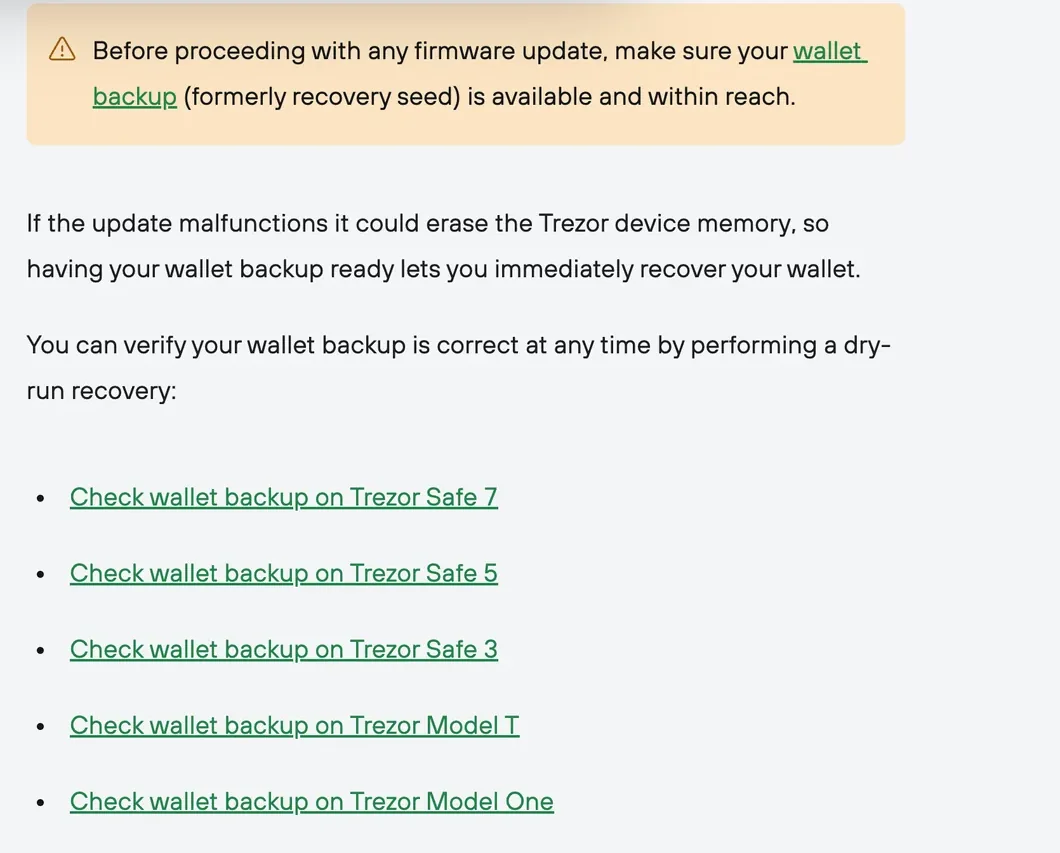
Trezor and Ledger ask for the same kind of thing before an update: you have to be able to produce your backup. Trezor's wording is “make sure your wallet backup (formerly recovery seed) is available and within reach.” Ledger says that, as a precaution, you should make sure your 24-word recovery phrase (Ledger's name for the seed phrase) is available.
I read “within reach” strictly. Not “it's probably still in that drawer”, but actually taking out the sheet of paper or the metal plate before updating and checking that the writing is legible and the word order is complete. If your backup is stored somewhere else, wait until you have it back before you update; don't gamble on it just to clear a notification. For ways of storing a backup that hold up over time, see How to Store Your Seed Phrase Safely.
If you use a Trezor, you can go one step further: a dry-run recovery. Trezor's guide says you can use it at any time to verify that your wallet backup is correct, and it gives separate backup-check instructions for the Safe 7, Safe 5, Safe 3, Model T and Model One. You start from the Check wallet backup links that the guide lists by model.
A checklist before pressing update (these are my suggestions; the official guides don't list them):
- Backup: physically on the desk, not “I remember where I put it”.
- Cable: one you know is good, firmly seated at both ends; the next section explains why.
- Computer: a laptop plugged into the charger, never an update when the battery is nearly flat.
- Timing: not right before a transfer you urgently need to make. If the device does get wiped, restoring takes time.
- Entry point: only from Trezor Suite or Ledger Wallet that you opened yourself, never from an email, a direct message or a web link.
Whether to update right now, I'd decide on three conditions: the prompt appeared inside a copy of Trezor Suite or Ledger Wallet that you opened yourself; the backup is on the desk, with the writing and the order both checked; and you have no urgent transfer to make over the next few days. If all three hold, update. If any one is missing, leave it for now.
What happens if the connection drops halfway through
From Trezor's guide: “Your Trezor will be wiped if the device connection is lost while loading the new firmware.”
As causes of a lost connection, the guide names a faulty cable or a cable that gets pulled out. If it does happen, the official fix is:
- Reconnect the device.
- Reinstall the firmware in Trezor Suite.
- Be ready to recover your account — this is exactly the moment the backup is for.
Two other moments during installation tend to catch people off guard. Trezor may prompt you to restart in bootloader mode; just choose Restart. On a Model One still running firmware 1.11.2 or earlier, the bootloader and the firmware are updated in two separate steps, so you may be asked to confirm twice. The new firmware's version number appears on the Trezor screen; confirm the installation on the device and follow the progress in Trezor Suite.
On the Ledger side, the instruction is to stay in Ledger Wallet for the whole update and follow the prompts. The device restarts several times along the way, which the guide warns you about in advance. If it gets stuck in Update Mode, the guide's answer is to carry on with the desktop version of Ledger Wallet.
The device's configuration — name, settings, picture, language and app list — is backed up by Ledger just before the update and restored once it finishes. After the update, the blockchain apps on the device are reinstalled automatically; in the guide for Stax, Flex and Nano Gen5, you trigger this by tapping Restore apps.
Don't touch the cable, don't let the computer go to sleep, don't plug in or unplug any other USB device, and don't start a system update on the computer at the same time. On a Trezor, losing the connection while the firmware loads costs you a wiped device, so anything that keeps the connection steadier is worth doing. If it does get wiped, restore only inside the official app, following the prompts on the device, and never use a “repair tool” that anyone sends you.
Only press update inside Trezor Suite or Ledger Wallet
The legitimate places to update live only inside each company's own app:
- Trezor: when new firmware is released, a notification appears at the top of Trezor Suite; click Update now and follow the prompts on screen and on the device. You can also go to Settings > Device yourself, where the Security section shows the current firmware version: Up to date means you're on the latest, Update available means there is an update.
- Ledger Stax, Flex, Nano Gen5: first update Ledger Wallet (formerly Ledger Live) itself to the latest version, then on desktop or mobile tap Update in the “Ledger OS update available” banner. The device shows Update Ledger OS? with the version number; tap Install, then enter your PIN. When Ledger Wallet shows Your Ledger OS is up to date, you're done.
- Ledger Nano X (desktop): open Ledger Wallet, go to My Ledger from the Profile menu in the top-right corner, and connect and unlock the device; when the device asks, allow My Ledger, then click Update OS in the banner.
- Ledger Nano S Plus and other models not listed here: go by the steps in Ledger's update guide at the time.
A notice sits at the top of Ledger's help center pages: “Beware of phishing attacks, Ledger will never ask for the 24 words of your recovery phrase. Never share them.”
Put the two companies' update steps side by side, and what you do by hand is this: press update in the app and confirm the installation on the device, plus one PIN entry on a Ledger. Not a single step asks you to type your seed phrase into a computer, a web page or an email reply. The conclusion that follows: anything that asks you to enter your seed phrase on a web page, in an email or in a direct message in the name of an “update” is phishing. The one thing to keep separate is a check or recovery you start yourself. For example, when you run Check backup on a Trezor Model One from the settings in Trezor Suite, you type the words into Suite on your computer keyboard, in the order the device screen asks for. That is a step you open yourself from the settings of the official app; no update pop-up, email or direct message will lead you to it.
This scam usually arrives one of two ways: fake official emails mass-mailed on the pretext of verifying your seed phrase for new firmware, and fake official sites in the ad slots that sit above the real result when you search for the official app's name. The second is harder to guard against: the app you install is itself fake, so no “update” it pops up can be trusted. To download Trezor Suite or Ledger Wallet, type the official website address by hand and don't click the ad slots in search results.
Trezor vs Ledger: the update flow side by side
| Stage | Trezor | Ledger |
|---|---|---|
| Where to update | Notification at the top of Trezor Suite (Update now), or Settings > Device | Notification banner in Ledger Wallet; Nano X on desktop via My Ledger |
| Before updating | Wallet backup within reach; you can run a dry-run recovery first | 24-word seed phrase available; update Ledger Wallet to the latest version first |
| On the device | Check the firmware version on screen and confirm the installation | Stax/Flex/Gen5: tap Install to confirm, then enter the PIN; Nano X: allow My Ledger first when the device asks |
| If something goes wrong | A lost connection while the firmware loads wipes the device: reconnect, reinstall, be ready to recover | Stuck in Update Mode: carry on with desktop Ledger Wallet |
| How to confirm it finished | Settings > Device shows Up to date | Stax/Flex/Gen5: shows Your Ledger OS is up to date; tap Restore apps to reinstall apps |
A few points the guides mention separately that didn't fit in the table:
- No Ledger updates from a tablet: use a desktop, a laptop or an Android phone connected over USB; the Stax, Flex and Nano Gen5 can also be updated over Bluetooth from the mobile version of Ledger Wallet.
- Ledger rolls updates out in batches: if you can't see the update banner yet, open the app again a while later, and don't go looking online for installers that other people have posted.
- Ledger's November 2025 update: Bluetooth pairing has to be set up again after updating.
- Older Trezor Model One firmware: on 1.11.2 or earlier, the bootloader and the firmware are updated in two steps.
- Trezor firmware changelog: the guide page links to the changelog; if you want to know what a release changes, you can read it before updating.
Common questions
I pressed update before remembering my backup isn't with me. Can I unplug the cable to stop it?
Trezor's guide states that if the connection is lost while new firmware is loading, the device will be wiped, so once installation has started, don't unplug it; let it finish. With a Ledger, stay in Ledger Wallet and follow the prompts to the end. Once it's done, get your backup back and check it carefully before doing anything else.
My backup is kept at my family home far away. Can I update the firmware first?
I wouldn't. Trezor asks for the backup to be within reach, and Ledger asks for the seed phrase to be available; Trezor's reason is that a failed update can wipe the device, and with the backup within reach you can restore straight away instead of tracking down that sheet of paper days later. Wait until the backup is in your hands before pressing update; if you use a Trezor, in the meantime you can check in Trezor Suite under Settings > Device whether it shows Update available.
An email from the “Ledger security team” says I must verify my 24 words before a firmware update. What should I do?
Treat it as phishing and don't click a single link in it. The top of Ledger's help center pages warns that Ledger will never ask for the 24 words of your seed phrase. A genuine Ledger OS update only shows up inside Ledger Wallet that you opened yourself, and on the device all you do is confirm the installation by following the on-screen prompts; entering your seed phrase is never part of it. If you have already typed the words into a web page, treat it as a leaked seed phrase: create a new wallet as soon as possible and move your assets into it.
Can I update Ledger OS on a Ledger from an iPad?
Not at the moment. Ledger's update guide states that Ledger OS can't be updated on a tablet. Use a desktop, a laptop or an Android phone instead, connected to the device over USB; the Stax, Flex and Nano Gen5 can also be updated over Bluetooth from Ledger Wallet on a phone.
Sources
The three pages below were checked in September 2026. The quotations in this article are taken from those pages.
- Trezor: Update Trezor firmware
- Trezor: Check wallet backup on Model One
- Ledger: Ledger OS™ (Operating System) Update Guide